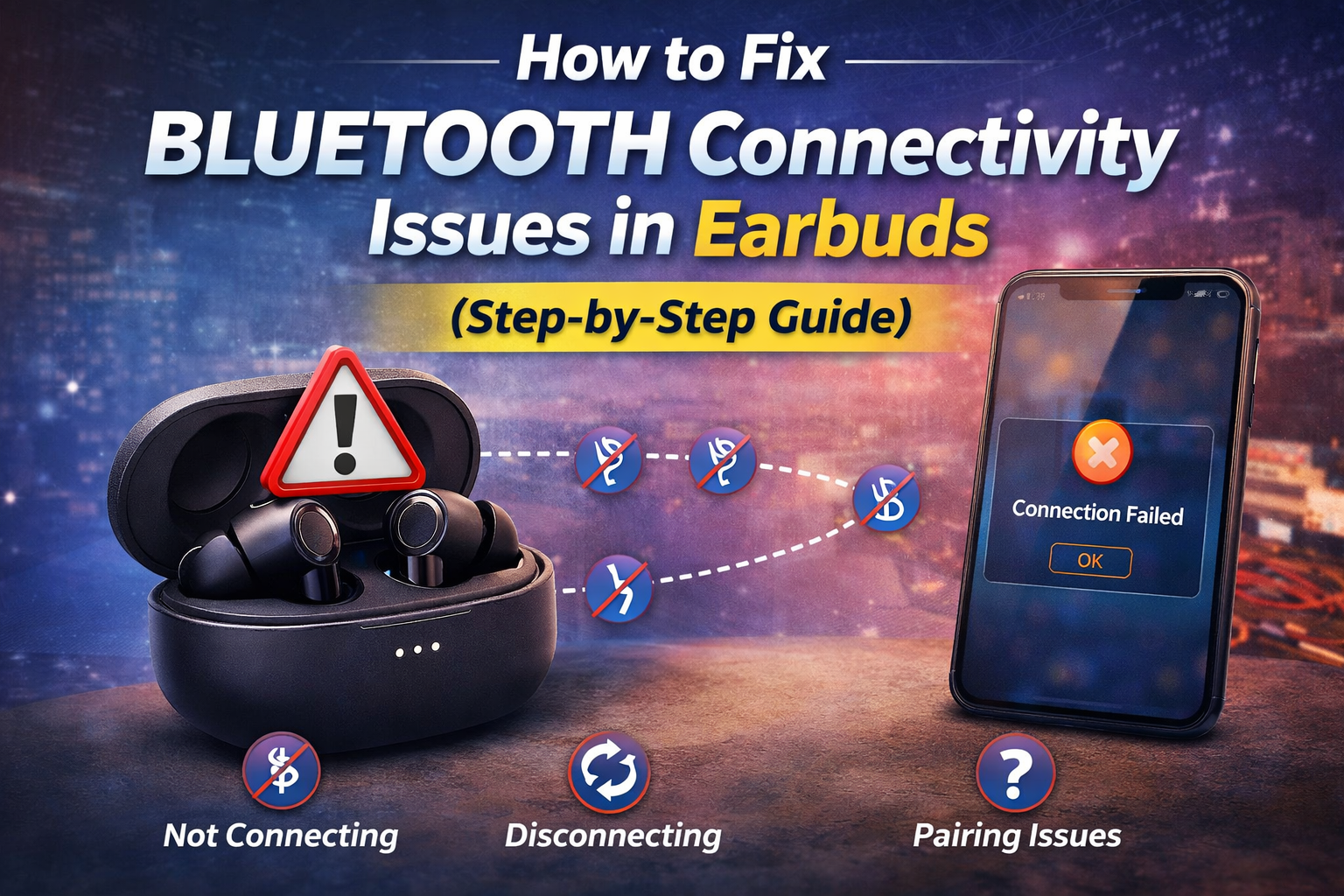
If your earbuds are not connecting properly, disconnecting randomly, or showing pairing issues—you’re not alone.
Bluetooth problems are one of the most common issues users face with wireless earbuds, whether you’re using budget models or premium ones like Samsung Galaxy Buds4 or Samsung Galaxy Buds3.
The good news?
Most of these issues can be fixed in just a few minutes.
In this guide, I’ll walk you through simple, step-by-step solutions that actually work—based on real-world usage.
Common Bluetooth Issues in Earbuds
Before fixing, let’s quickly understand the problem.
You might be facing:
- Earbuds not connecting at all
- One earbud not working
- Frequent disconnections
- Audio lag while watching videos
- Poor call quality
👉 Don’t worry—each of these has a solution below.
Step-by-Step Fixes (Try in Order) (Comment your personal queries to us for the instant solution)
1. Turn Bluetooth OFF & ON Again
This sounds simple, but it works surprisingly often.
Steps:
- Turn OFF Bluetooth on your phone
- Wait 10–15 seconds
- Turn it ON again
- Reconnect your earbuds
👉 This refreshes the connection and fixes minor glitches.
2. Forget & Reconnect Device
Sometimes your phone stores incorrect pairing data.
Steps:
- Go to Bluetooth settings
- Find your earbuds (e.g., Samsung Galaxy Buds3)
- Tap “Forget” or “Unpair”
- Pair them again
👉 This solves most connection issues.
3. Reset Your Earbuds (Very Effective)
If nothing works, resetting is the best option.
General Steps:
- Put earbuds in the case
- Press and hold touch controls (or button) for 10–15 seconds
- Wait for LED indicator to blink
👉 After reset, reconnect them like new.
💡 Each brand may have slightly different steps—check your manual.
4. Check Battery Levels 🔋
Low battery can cause:
- Disconnection
- One side not working
👉 Make sure:
- Both earbuds are charged
- Charging case has power
5. Keep Your Phone Close 📱
Bluetooth range is limited.
👉 Avoid:
- Keeping phone in another room
- Too many walls in between
✔ Best range: within 5–10 meters
6. Remove Interference
In India, we often have multiple devices around:
- WiFi routers
- Smart TVs
- Other Bluetooth devices
👉 These can interfere with connection.
✔ Try:
- Turning off unused devices
- Moving to a less crowded area
7. Update Your Phone Software
Outdated software can cause compatibility issues.
👉 Go to:
Settings → Software Update
✔ Install latest updates
8. Clean Your Earbuds (Often Ignored)
Dust or earwax can:
- Block sensors
- Affect connectivity
👉 Use:
- Soft cloth
- Dry brush
⚠ Don’t use water
9. Check for App Issues (Samsung Users)
If you’re using Samsung Galaxy Buds4, check the Galaxy Wearable app.
👉 Try:
- Restarting the app
- Updating the app
- Reconnecting earbuds
10. Restart Your Phone
A simple restart can fix hidden bugs.
👉 Turn OFF → wait → Turn ON
“If you’re looking for new earbuds, check:”
Android vs iPhone Tips
For Android Users:
- Clear Bluetooth cache (advanced users)
- Check app permissions
For iPhone Users:
- Reset network settings if issue persists
When Nothing Works
If you’ve tried everything:
👉 Possible reasons:
- Hardware issue
- Faulty earbuds
- Manufacturing defect
✔ Solution:
- Contact brand support
- Check warranty
Pro Tips to Avoid Future Issues (Must Follow)
- Keep earbuds charged
- Don’t connect to too many devices
- Update software regularly
- Store properly in case
Final Thoughts
Bluetooth issues can be frustrating, but in most cases, they are easy to fix.
From my experience, resetting earbuds + reconnecting solves the problem 80% of the time.
If you’re still facing issues, it might be time to upgrade to a more reliable option like:
- Samsung Galaxy Buds4
- Samsung Galaxy Buds3
FAQs (SEO Boost)
Q1. Why are my earbuds not connecting?
It could be due to pairing issues, low battery, or software bugs.
Q2. Why is only one earbud working?
Usually caused by battery imbalance or connection glitch.
Q3. How do I reset my earbuds?
Place them in the case and hold the button/touch area for 10–15 seconds.
Q4. Why do my earbuds keep disconnecting?
Interference, low battery, or distance issues are common reasons.