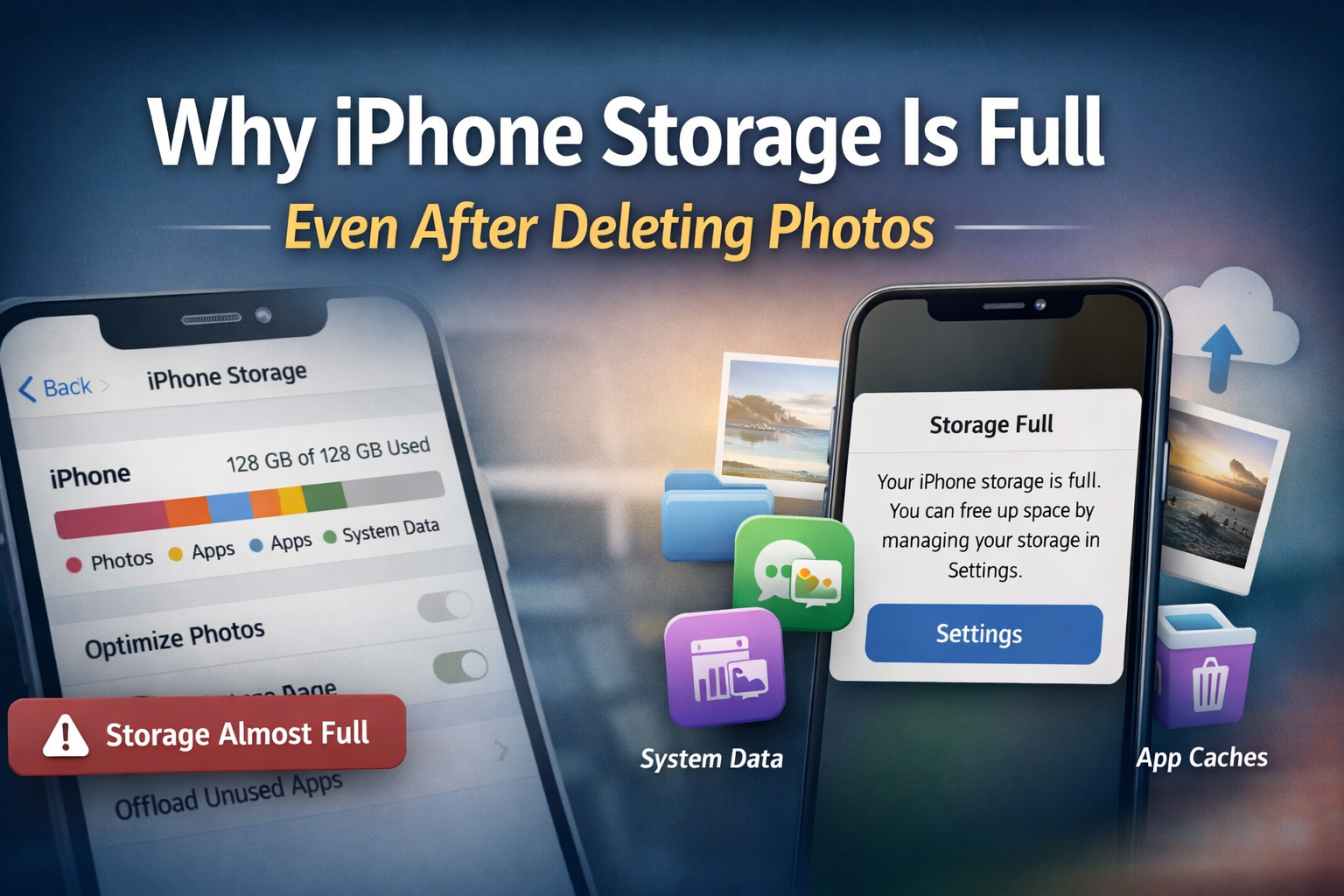
I am sure if you are reading this, then you are facing the same storage issue with your iPhone. Deleting photos on an iPhone should instantly free up storage—but for many users, it doesn’t. Even after removing hundreds of images and videos, the storage bar barely moves, and the “Storage Almost Full” warning continues to appear.
Many iPhone users wonder why iPhone storage is full even after deleting photos. You remove pictures and videos, yet the storage bar barely moves.
This isn’t a bug or a one-off issue. It’s a result of how iOS manages data behind the scenes. Several system-level factors contribute to storage staying full, even when it looks like you’ve cleared space.
Here’s what’s actually happening.
Photos Aren’t Fully Deleted Right Away
When you delete photos or videos on an iPhone, they don’t disappear immediately. iOS moves them to the Recently Deleted album, where they remain for up to 30 days.
Until this folder is cleared:
- The files continue to occupy storage
- Large videos can consume several gigabytes without you realizing it
In many cases, iPhone storage not freeing up after deleting photos happens because deleted files remain in the Recently Deleted folder. Manually emptying the Recently Deleted album often frees up a noticeable amount of space instantly.
iCloud Photos Can Create Local Storage Confusion
If iCloud Photos is enabled, your iPhone constantly syncs media with Apple’s servers. This can make storage behavior confusing.
Why iPhone Storage Is Not Freeing Up After Deleting Photos
- iOS may keep local placeholders
- High-resolution versions can be temporarily cached
- Sync delays may prevent immediate storage updates
In some cases, the system re-downloads photos automatically when space becomes available, making it feel like storage never improves.
“System Data” Quietly Grows Over Time
One of the biggest reasons storage stays full is System Data (previously called “Other”).
Why System Data Takes So Much Space on iPhone, System Data includes:
- Temporary system files
- App caches
- Logs and performance data
- Siri voices and language files
- Software update leftovers
This category can grow into tens of gigabytes, especially on devices with limited storage. iOS does not provide a direct way to clear it manually, which makes it frustrating for users.
Apps Keep Large Cache Files Even After Media Deletion
Many apps store data independently of your Photos library.
Common examples:
- WhatsApp and Telegram media backups
- Instagram, YouTube, and Safari cache files
- Streaming app downloads and temporary data
Deleting photos doesn’t affect these files. Over time, app caches can quietly consume more storage than photos themselves.
Messages and Attachments Take Up More Space Than Expected
iMessage conversations often contain:
- Photos
- Videos
- GIFs
- Voice notes
- Document attachments
Even if you delete photos from the Photos app, copies inside Messages remain stored unless conversations or attachments are cleared separately. Long message histories can easily use several gigabytes.
Storage Index Updates Are Not Instant
After deleting large files, iOS doesn’t always recalculate storage immediately.
You may notice:
- Storage numbers updating hours later
- Temporary inconsistency between available space and actual usage
- Space freeing up only after restarting the device
This delay is normal and part of how iOS optimizes performance and battery usage.
iOS Keeps Temporary Files for Performance Optimization
iOS is designed to prioritize smooth performance. To do this, it keeps:
- App launch data
- Background process files
- Temporary memory files
These files are removed automatically when the system truly needs space, but until then, they appear as occupied storage—even if you’ve deleted user content.
What Actually Helps Free Up iPhone Storage
Deleting photos alone is rarely enough. Effective storage management usually involves a combination of steps:
- Clearing the Recently Deleted album
- Reviewing large apps and reinstalling them if needed
- Removing old message attachments
- Offloading unused apps
- Restarting the device to refresh storage indexing
In some cases, backing up the iPhone and performing a clean restore results in the most noticeable storage recovery.
Final Thoughts
The issue isn’t that your iPhone ignores deletions—it’s that iOS manages storage differently than most users expect. Photos are only one part of the equation. System data, app caches, message attachments, and background files play a much larger role in long-term storage usage.
Understanding how iOS handles data makes it easier to manage space—and explains why deleting photos alone rarely solves the problem. Now you understand why iPhone storage stays full even after deleting photos and how to fix it step by step.
How to Fix iPhone Storage Full Issue (Step-by-Step Guide)
If your iPhone storage is full even after deleting photos, follow these steps in order. Each step addresses a common hidden cause.
Step 1: Clear the “Recently Deleted” Folder
Deleted photos and videos stay on your iPhone for 30 days.
What to do:
- Open Photos → Recently Deleted
- Select All → Delete Permanently
📌 This alone can free several GBs instantly.
Step 2: Restart Your iPhone
iOS does not always update storage data immediately.
Why this helps:
- Forces storage recalculation
- Clears temporary system files
- Updates storage numbers correctly
Step 3: Check iPhone System Data Usage
Go to:
Settings → General → iPhone Storage
If System Data is unusually large:
- It includes cache, logs, and temporary files
- It reduces automatically when space is needed
- Clearing Safari history can help reduce it
Step 4: Review Apps Using Hidden Storage
Some apps store data outside the Photos app.
Check for:
- WhatsApp / Telegram media
- Instagram & YouTube cache
- Streaming app downloads
Tip:
Delete and reinstall large apps instead of just clearing data.
Step 5: Clean Message Attachments
Messages can store large media files separately.
Go to:
- Settings → Messages → Storage
- Review Photos, Videos, GIFs
- Delete unnecessary attachments
Step 6: Enable “Offload Unused Apps”
This removes apps but keeps their data.
How to enable:
- Settings → App Store
- Turn on “Offload Unused Apps”
Step 7: Use iCloud Storage Smartly
If iCloud Photos is enabled:
- Turn on Optimize iPhone Storage
- Avoid keeping full-resolution files locally
Final Result – (How to Fix iPhone Storage Full Issue (Step-by-Step Guide)
Following these steps fixes most cases where:
- iPhone storage stays full
- Storage doesn’t reduce after deletion
- System Data appears too large